
Blog
SafeW Enterprise Admin Security Settings Checklist: A Complete Guide fr...
A security settings checklist for SafeW enterprise admins covering permissions, end-to-end encryption, device control, and audit logs to harden private-de...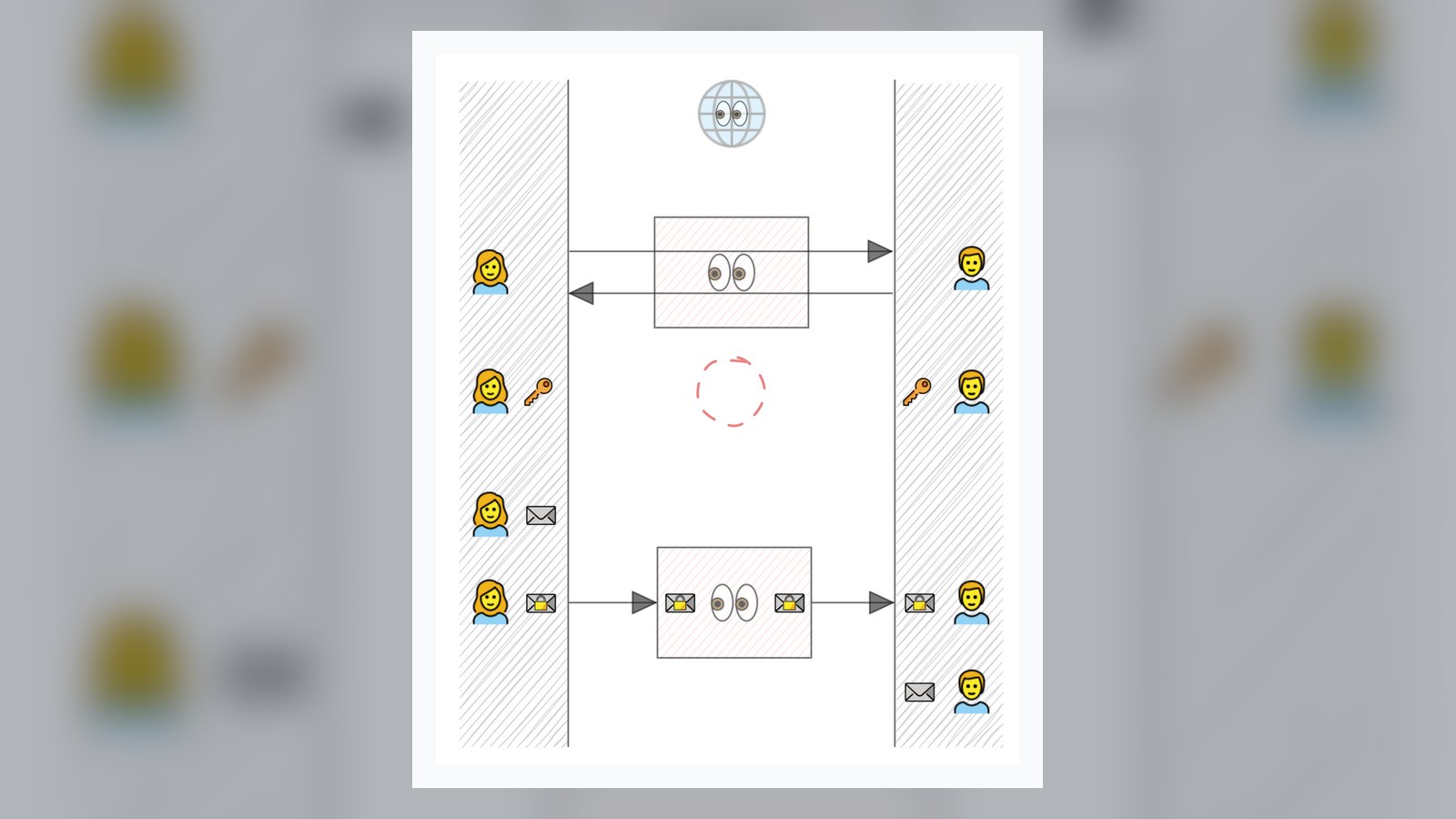
As an enterprise admin, deploying SafeW private IM is only the first step—proper security settings are what let encrypted chat deliver real value. The checklist below covers four dimensions: permissions, encryption, devices, and auditing, to help you harden your deployment systematically.
1. Permission and Role Management
The principle of least privilege is the foundation of security. In the SafeW admin console, assign roles by department and seniority to avoid over-provisioning.
- Role tiers: Set up super admins, department admins, and regular members, and keep super admins to just 1–2 people.
- Group permissions: Restrict creation and invitation rights for large groups (such as all-company groups) so only admins can perform these actions.
- Bot/API control: Assign each Bot its own Token with a limited call scope, and rotate keys regularly.
Scenario: A financial firm tightens posting rights in a 500-member group to "admins only can post announcements," preventing accidental leaks of sensitive information.
2. Encryption and Data Security
SafeW enables end-to-end encryption by default, but admins still need to confirm the following configurations:
- Enforced encryption: Ensure all conversations (both one-on-one and group chats) use end-to-end encryption, with no downgrade allowed.
- Private deployment keys: Hold your own encryption keys, back them up regularly, and store them offline to prevent data loss from unrecoverable keys.
- Multi-device sync policy: Limit the number of simultaneously online devices (e.g., up to 3), and enable verification for new device logins.
Scenario: A R&D team transfers design blueprints via private-deployment IM; end-to-end encryption ensures that even if the server is compromised, the content cannot be decrypted.
3. Device and Access Control
In mobile work scenarios, device control is essential.
- Device binding: Require employees to bind a corporate device on first login, and block unknown devices.
- Session timeout: Set an idle auto-lock time (e.g., 5 minutes) to reduce risk if a device is lost.
- Watermarks and screenshot protection: Enable screen watermarks for sensitive groups and restrict screenshot actions.
Scenario: A sales team uses phones to access SafeW in the field; device binding and timeout locking prevent customer data leaks if a phone is lost.
4. Auditing and Incident Response
Security settings need observability to back them up.
- Log auditing: Enable admin operation logs and login logs, and retain them for at least 180 days.
- Anomaly alerts: Configure alert rules for logins from unusual locations and frequent failures, and notify the security team in real time.
- Incident response process: Develop playbooks for account freezing and key rotation, and rehearse them regularly.
Scenario: An admin notices an account logging in from multiple IPs within a short period; the alert triggers, the account is frozen immediately, and an investigation begins to prevent data leakage.
After completing these settings, review the checklist quarterly and adjust policies alongside SafeW version updates. In daily communication, consider trialing these configurations with a small group first, then rolling them out to everyone—making security a habit rather than a burden.